3 Getting started with R
3.1 For Mac OS
3.1.1 Download R
Download R (and extra packages) from the Comprehensive R Archive Network, aka CRAN.
- Visit https://cran.r-project.org/
- Under ‘Download and Install R’, select the R for your operating system. For Macs, you’ll need to be careful to pick the one ‘For Apple Silicon’ if you have an M1/M2 Mac, or the one ‘For older Intel Macs’ if you have an older laptop.
- Double click the downloaded package and follow the instructions to install.
If you already have R, check it’s version number. If it’s < R version 4.0.0, we recommend you install the latest version.
3.1.2 Download RStudio Desktop
Download RStudio Desktop: a desktop app (also known as an “interactive development environment” or IDE) which makes working with R a lot nicer than not having an IDE (it will help you organise your code, data and plots in one place, as well as providing a range of useful shortcuts).
- Visit https://posit.co/download/rstudio-desktop/
- Ignore step 1 as you’ve done it already.
- Click the link under step 2 ‘Install RStudio’. The website should preselect the RStudio version that is best suited for your operating system.
- Double click the downloaded package and follow the instructions to install.
If you already have RStudio, check it’s version number. If it’s earlier than a 2024 release, we recommend you install the latest version.
3.2 For Windows 11
Complete guide here: https://mymedia.leeds.ac.uk/Mediasite/Play/253a1c6ea2a94f3aa8c40d5234f0e21a1d
3.2.1 Download R
Download R (and extra packages) from the Comprehensive R Archive Network, aka CRAN.
- Visit https://cran.r-project.org/
- Under ‘Download and Install R’, select the R for your operating system (‘Download R for Windows’ > ‘Install R for the first time’).
- Double click the downloaded package and follow the instructions to install.
- During the install, make sure to pick the location for R as: “C:\Users\yourusername\R\R-4.5.2”
Again, complete (only slightly old) guide here: https://mymedia.leeds.ac.uk/Mediasite/Play/253a1c6ea2a94f3aa8c40d5234f0e21a1d
If you already have R, check it’s version number. If it’s < R version 4.0.0, we recommend you install the latest version.
3.2.2 Download Rtools
- Visit https://cran.r-project.org/
- ‘Download R for Windows’ > Rtools > RTools 4.5
- Under Installing Rtools45, click on ‘Rtools45 installer’ link.
- During the install, make sure to pick the location for Rtools as: “C:\Users\yourusername\R”
Again, complete (only slightly old) guide here: https://mymedia.leeds.ac.uk/Mediasite/Play/253a1c6ea2a94f3aa8c40d5234f0e21a1d
3.2.3 Download RStudio Desktop
Download RStudio Desktop: a desktop app (also known as an “interactive development environment” or IDE) which makes working with R a lot nicer than not having an IDE (it will help you organise your code, data and plots in one place, as well as providing a range of useful shortcuts).
- Visit https://posit.co/download/rstudio-desktop/
- Ignore step 1 as you’ve done it already.
- DO NOT click the link under step 2 ‘Install RStudio’. Instead of downloading an installer/exe file, which is the default you want to download a .zip file. To do this, scroll down to the section marked Zip/Tarballs. Select the .zip file link next to ‘Windows 10/11’.
- Right click the downloaded package and extract all.
- During the extraction, make sure to pick the location for RStudio as: “C:\Users\yourusername\R”
Again, complete (only slightly old) guide here: https://mymedia.leeds.ac.uk/Mediasite/Play/253a1c6ea2a94f3aa8c40d5234f0e21a1d
If you already have RStudio, check it’s version number. If it’s earlier than a 2024 release, we recommend you install the latest version.
3.3 For University Windows machines
The recommended route is to download R and RStudio via Apps Anywhere. However, if that fails, try the method described above for Windows 11 machines.
3.4 Set code highlighting in RStudio
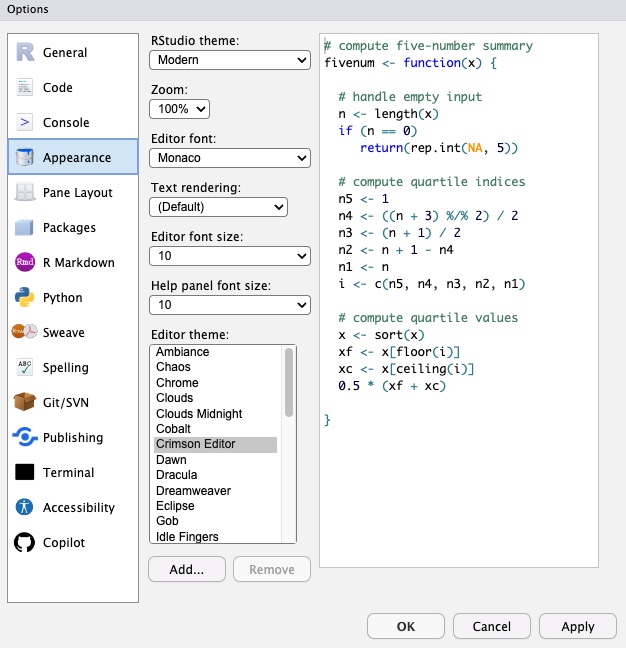
RStudio lets you set the colouring on your code. To make some of our explanations more helpful, we recommend you set up RStudio to use the same colouring as we have used in our RStudio set up and in the workshop book.
To do this, go to Tools > Global Options. In the Appearance tab, under Editor Theme, choose Crimson Editor and set Apply.